CRM & leads
Every buyer gets a follow-up.
Leads from your links, your website, the listing sites and the lot land in one place, each with the car they want and the next thing to do.
Next
Call Julie, 10:00
2021 Lexus NX 300
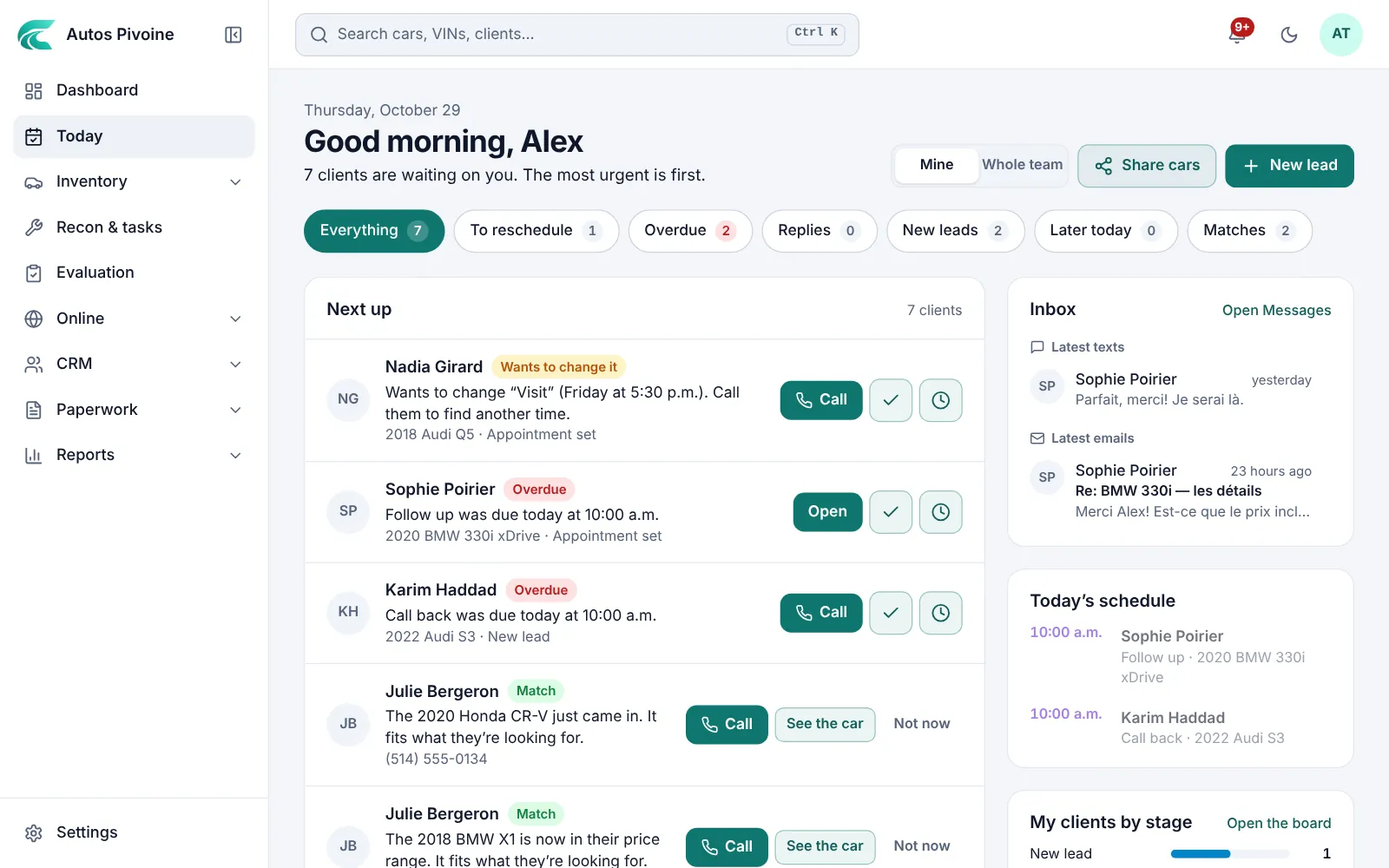
TodayNew
Each salesperson’s list for the day: who to call, who wrote back, new leads and clients a new car fits, the most urgent first.
Why it helps
Open it in the morning and work down the list. Nothing waits in someone’s head.
How to use it
- Open Today.
- Call, text or open each client from their line.
- Mark it done or move it to tomorrow; the next one comes up.
Included in every plan.
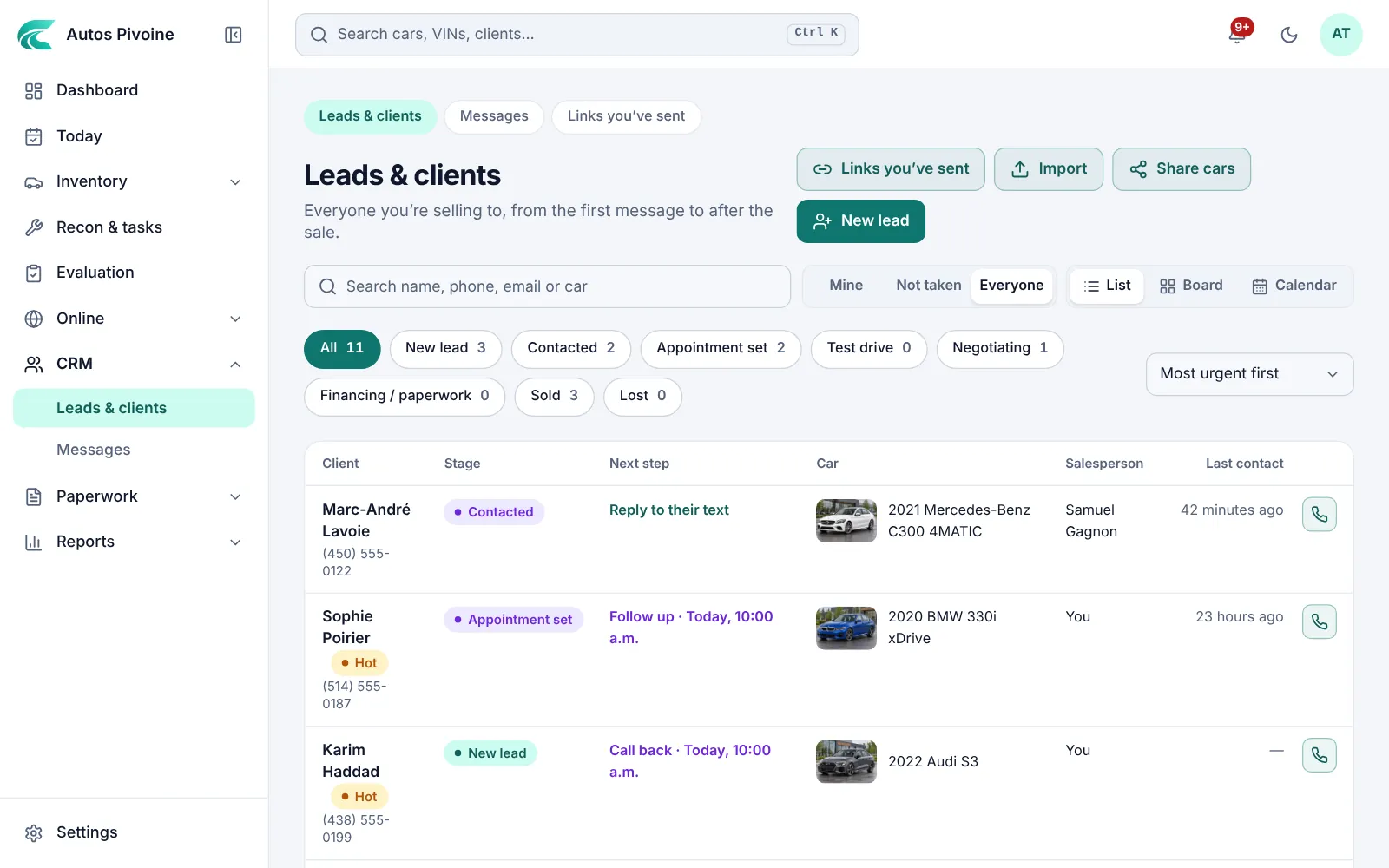
Leads and clients
Everyone you sell to in one list, with where they came from, the car they want, their stage and the next step.
Why it helps
Nothing gets lost in someone’s texts. Leads from links, your website and the listing sites arrive by themselves, with a first follow-up already set.
How to use it
- Open CRM › Leads & clients.
- Add a walk-in with New lead.
- Each new lead gets its first task from your follow-up rules.
Included in every plan.
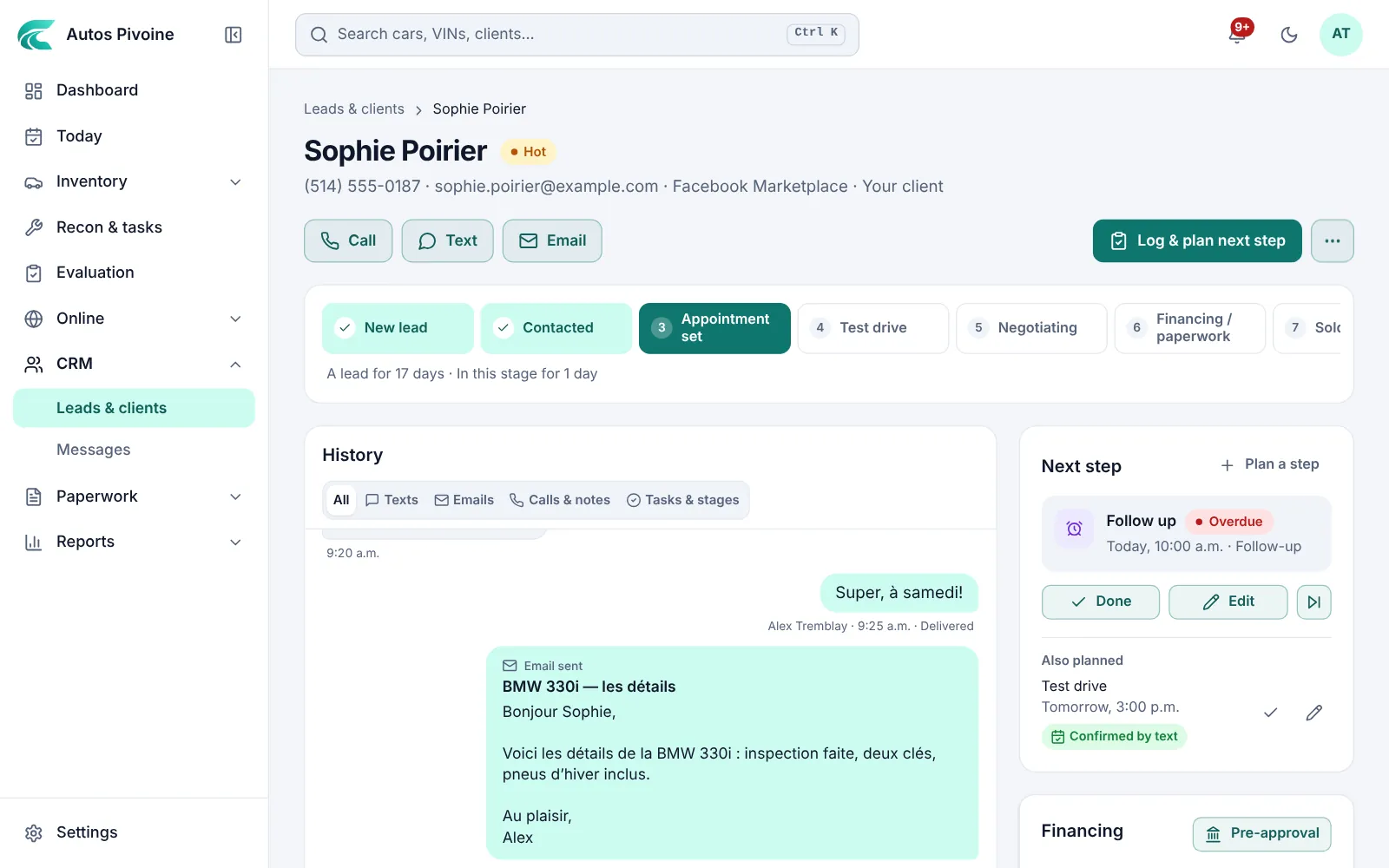
The client’s pageNew
Their texts, emails, calls and notes in one history, the next step, the cars they want and their deals.
Why it helps
Whoever picks up the client knows what was said and what comes next.
How to use it
- Open a client from Leads & clients.
- Call, text or email from the buttons at the top.
- After each call or visit, use Log & plan next step.
Included in every plan.
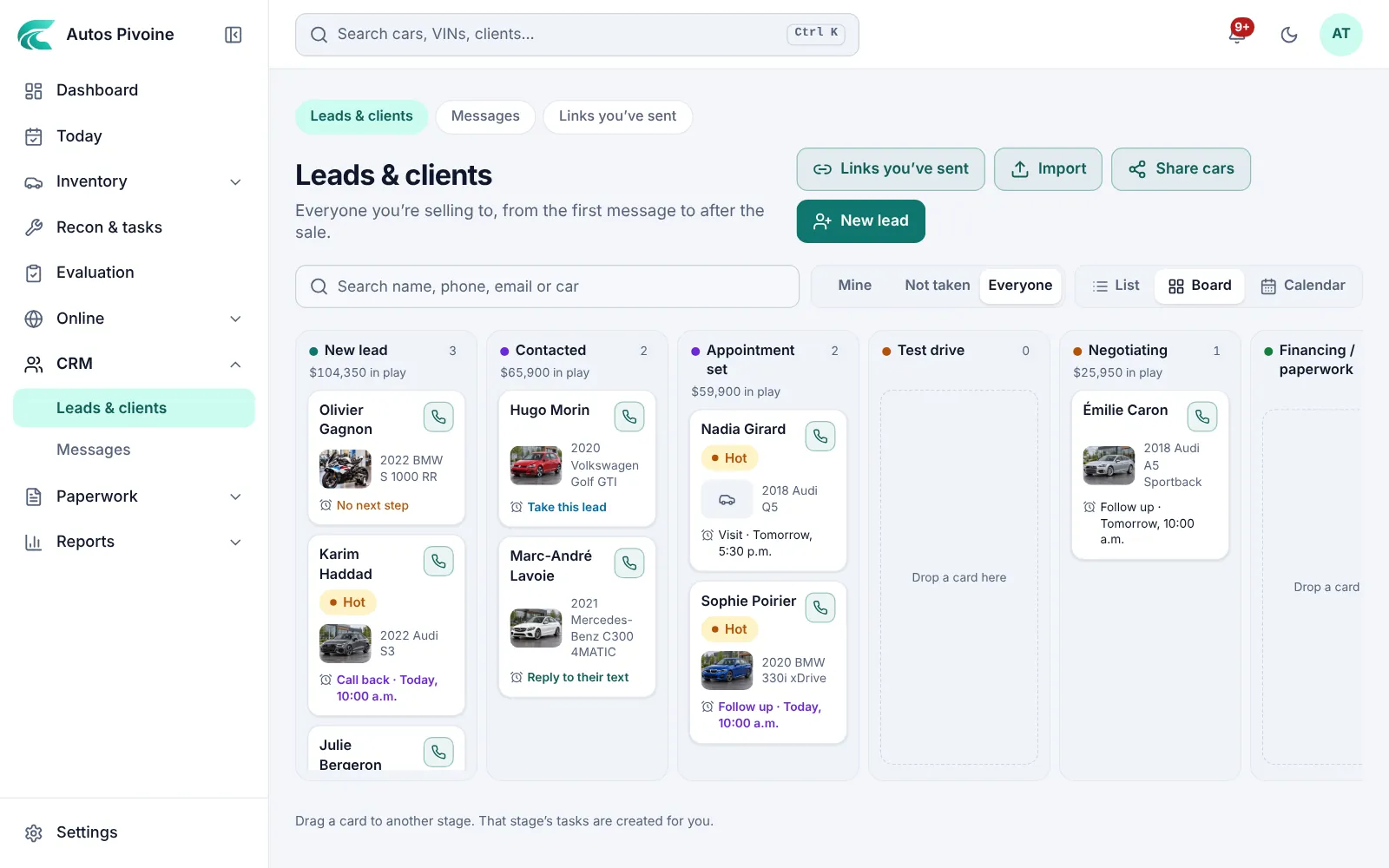
Stages and board
See every sale in progress, from new lead to sold, and move it along in one drag.
Why it helps
Each stage creates the next task for you: a call after first contact, a confirmation before the appointment, a thank-you after the sale.
How to use it
- Open CRM › Leads & clients and choose Board.
- Drag a client to their new stage: contacted, appointment, test drive, negotiating, paperwork, sold.
- Change the stages and their tasks in Settings › CRM.
Included in every plan.
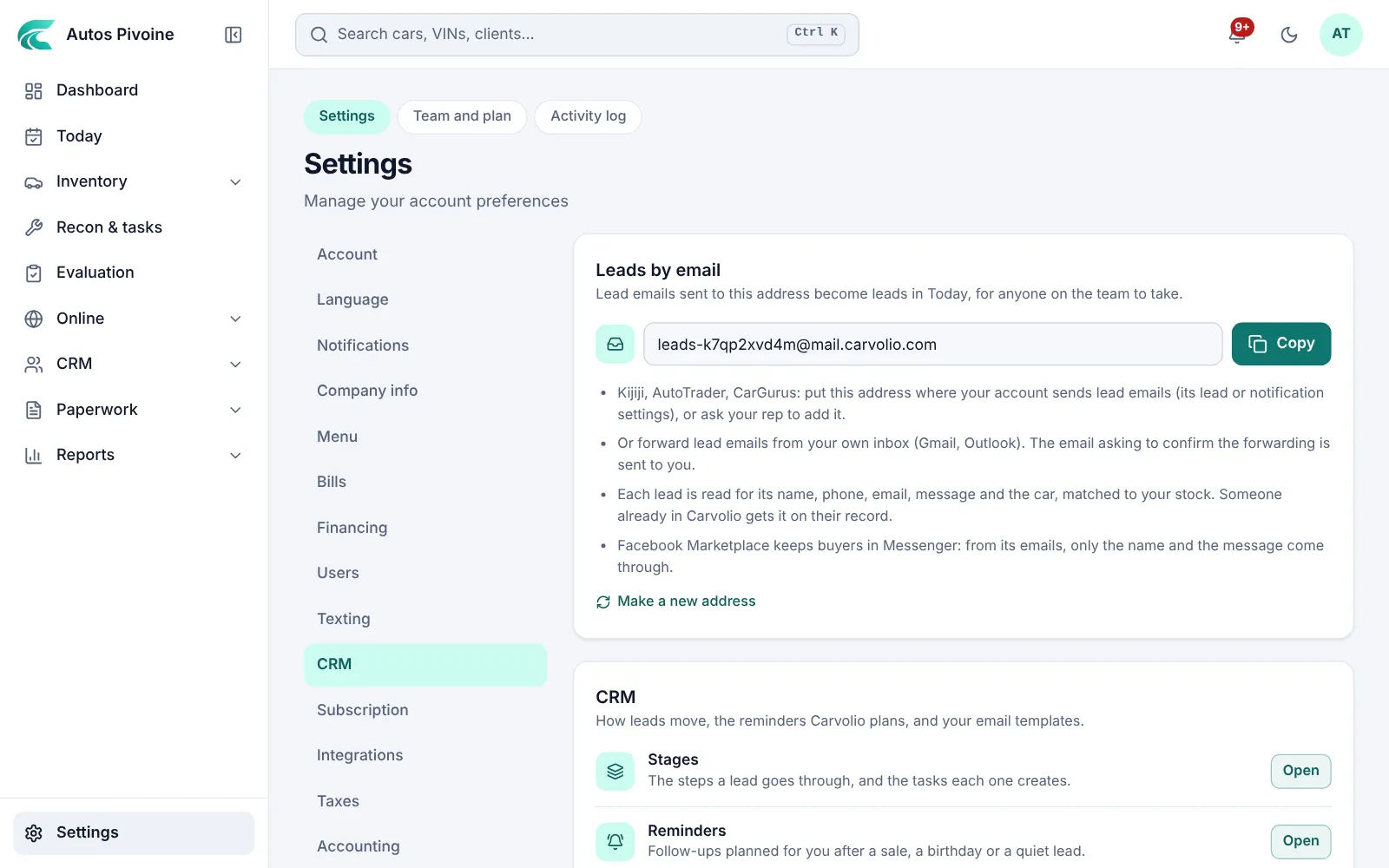
Leads from Kijiji, AutoTrader and CarGurusNew
Your dealership gets its own address. Lead emails sent to it become leads, with the car and their message.
Why it helps
No more copying leads out of your inbox. They get a follow-up like everyone else.
How to use it
- Open Settings › CRM › Leads by email and copy your address.
- Put it where your Kijiji, AutoTrader or CarGurus account sends its leads.
- New leads show up in Leads & clients and in Today.
Included in every plan.
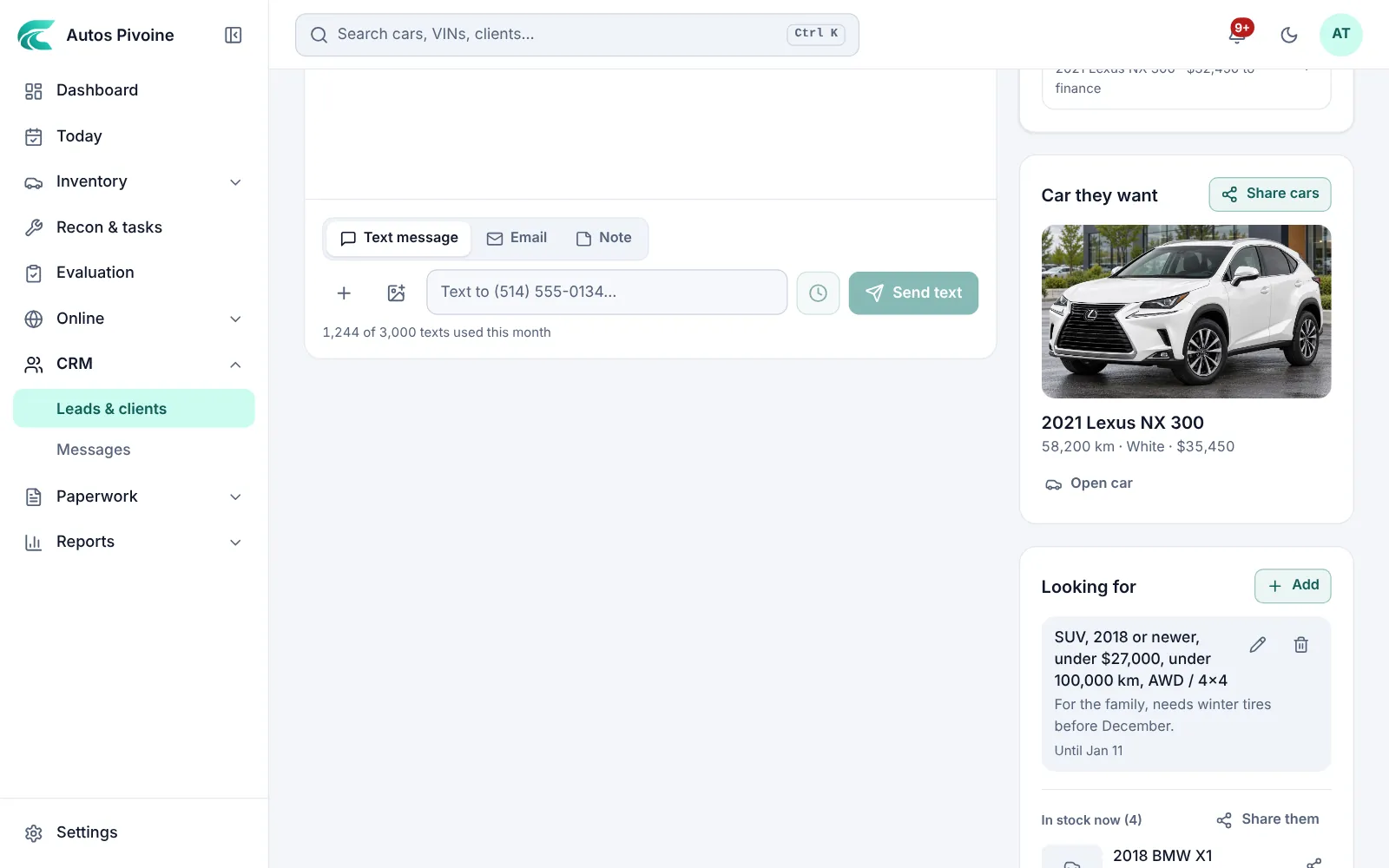
What they’re looking forNew
Save what a client wants, even when you don’t have it: make, budget, year, kilometres. When a car that fits comes in, their salesperson is told.
Why it helps
The buyer you couldn’t help last month is the first call when the right car arrives.
How to use it
- Open the client and choose Add under Looking for.
- Set what they want; leave out what doesn’t matter.
- When a car fits, it shows in Today under Matches.
Included in every plan.
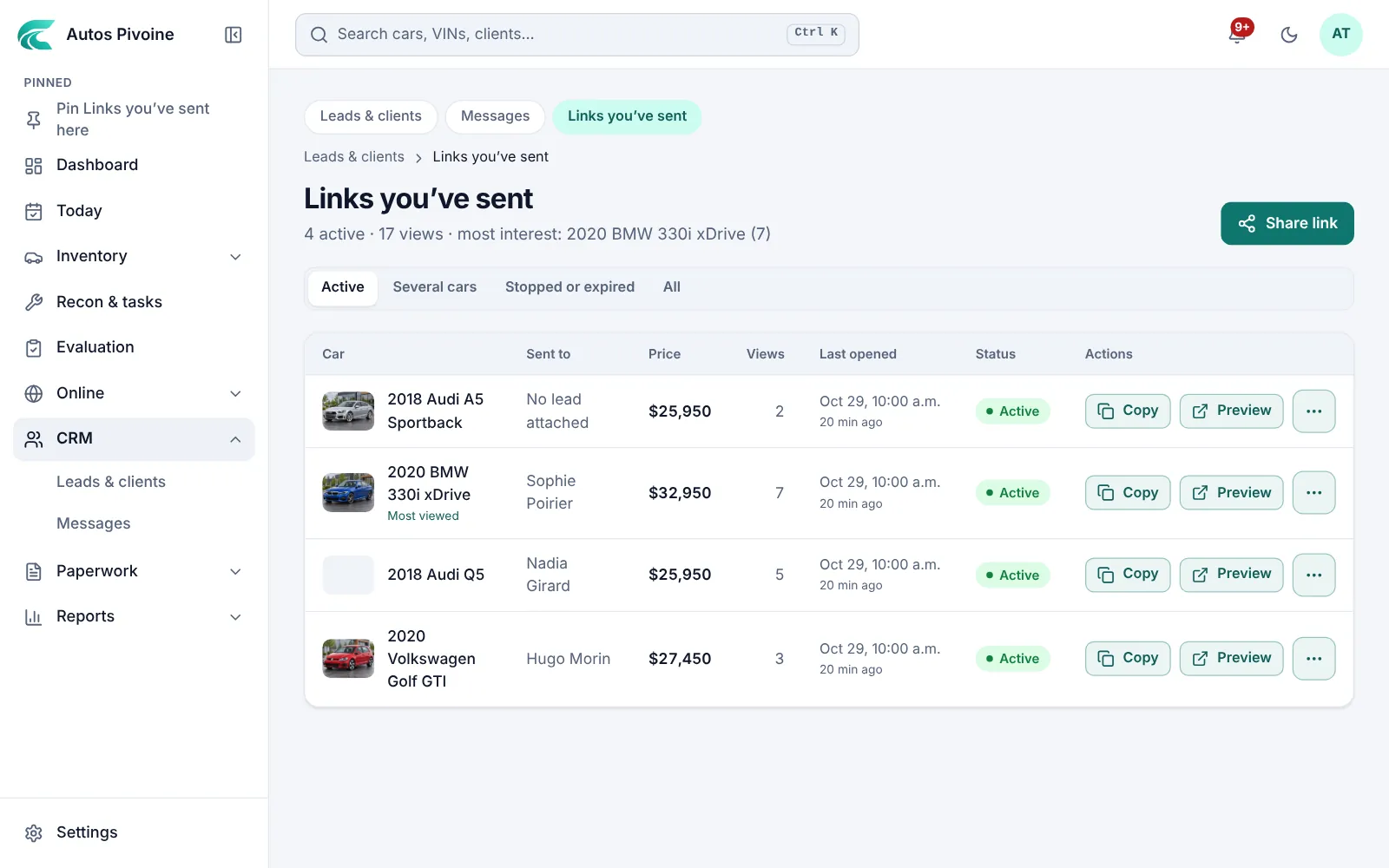
Share links
Send a client a page for one car or several, with the price you chose for them, the photos and the Carfax.
Why it helps
A real page sells better than screenshots, and you see the moment it’s opened, so you call while they’re interested.
How to use it
- Open the car, or a client, and choose Share cars.
- Set the client’s price, or hide it, and choose whether to show the Carfax.
- Copy the link, or send it by text or email.
- See views and the last time it was opened in CRM › Links you’ve sent.
Included in every plan.
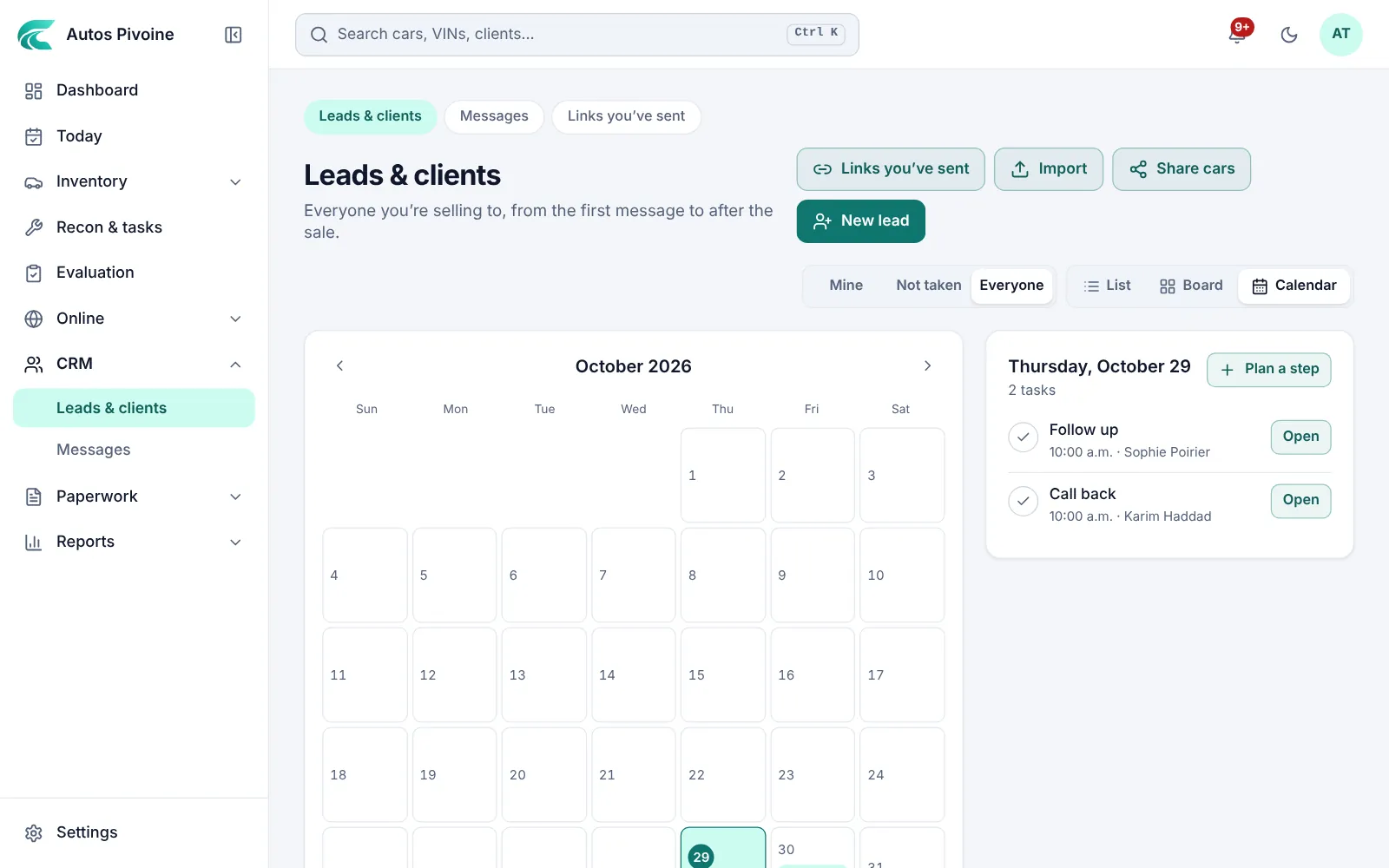
Calendar and tasks
Calls, test drives and follow-ups for the whole team, by day, with late ones in red.
How to use it
- Open CRM › Leads & clients and choose Calendar.
- Add a task, or let the stages add them.
- Check it off when it’s done; the client’s history keeps a record.
Included in every plan.
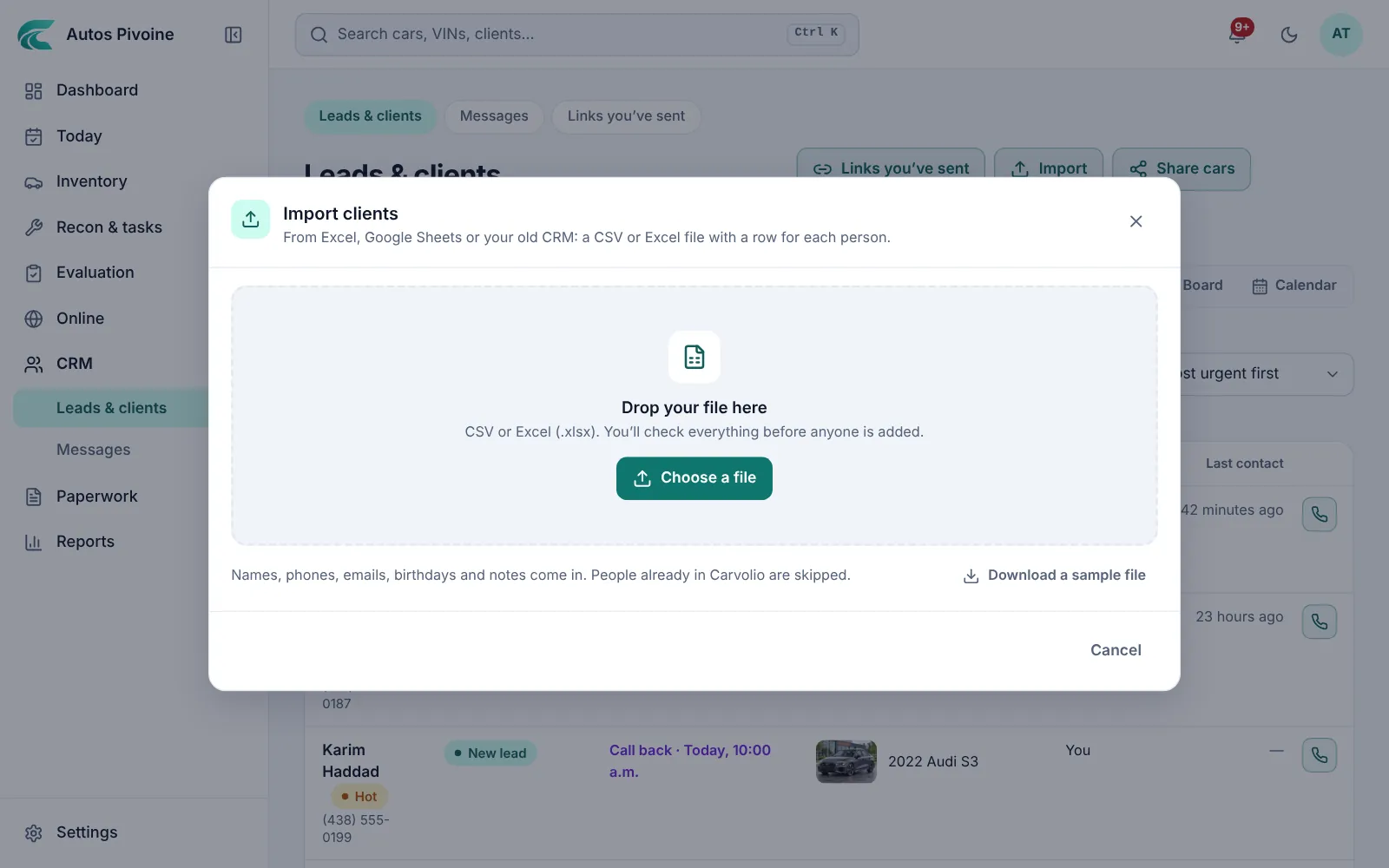
Import your clientsNew
Bring in the clients you already have, from a CSV or Excel file. You check every row before anyone is added.
How to use it
- Open CRM › Leads & clients and choose Import.
- Pick the file; its columns are matched for you.
- Check the list, then import.
Included in every plan.
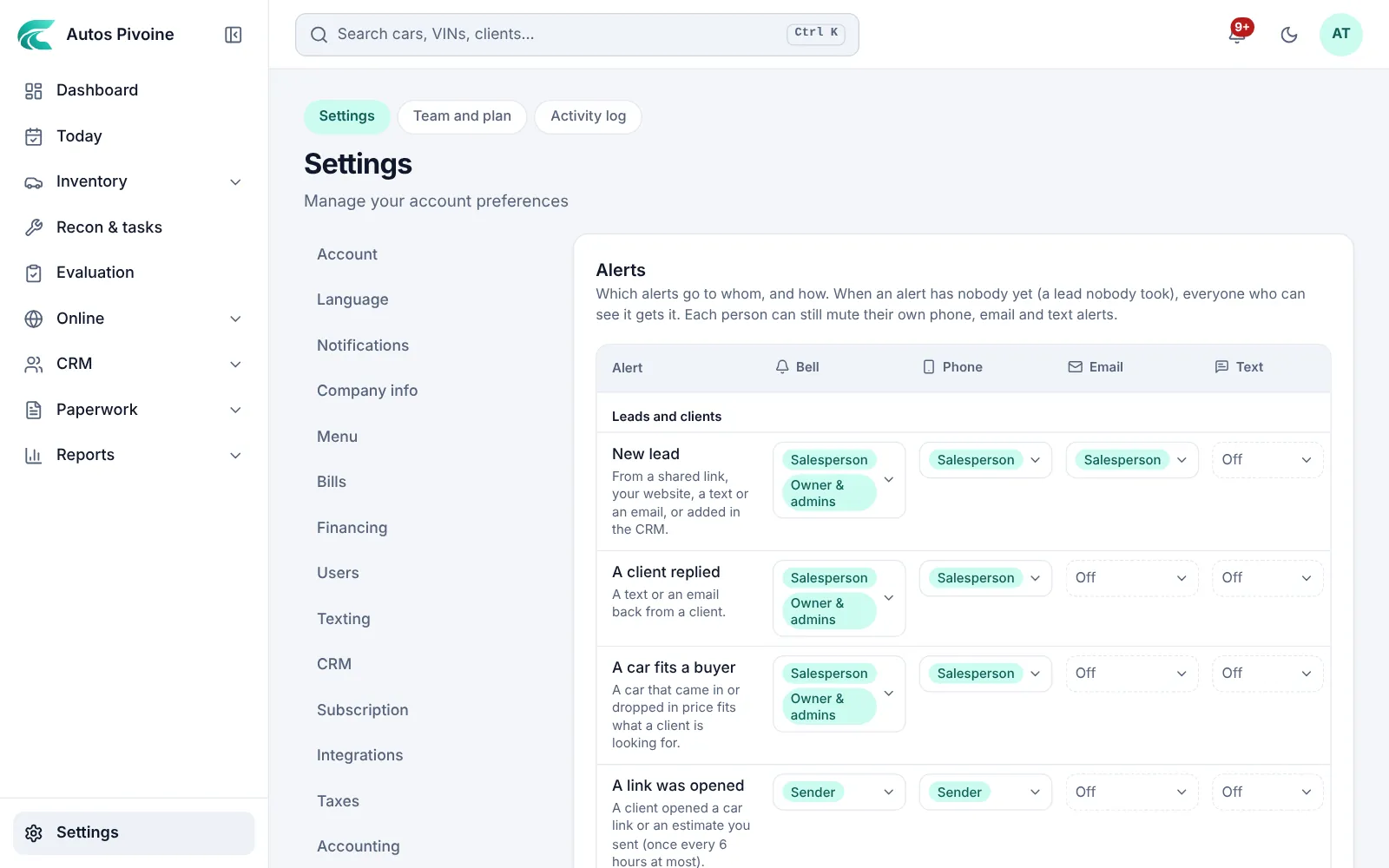
Alerts
A morning email with new leads and today’s follow-ups, and alerts in the app and on your phone, each to the right person.
How to use it
- Open Settings › Alerts.
- Choose who gets each alert: the bell, their phone, email or text.
- Write the birthday message once; Carvolio sends it on the day.
Included in every plan.