Texts, email & callsNew
Every conversation in one place.
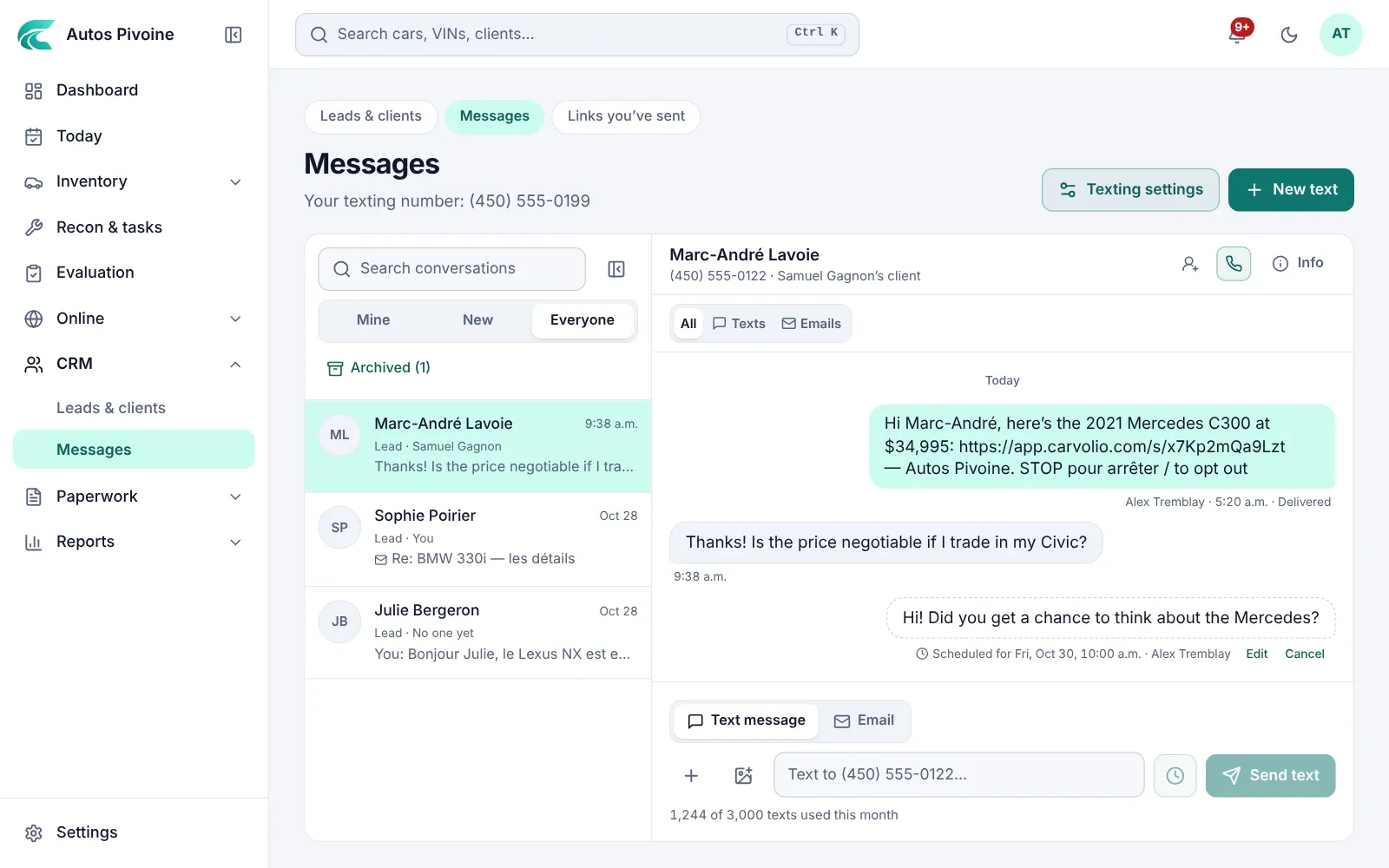
Text and email clients from the dealership’s number, remind them of their appointment and call from your phone. Every reply lands in Messages, beside their file.
Appointment
Confirmed
Nadia answered 1
Texts from your dealership’s numberNew
Everyone texts from one shared number, with the client’s file beside the conversation. Send a car, a photo or a deposit link.
Why it helps
Clients keep one number for the dealership, and no conversation stays on someone’s personal phone.
How to use it
- Pick your texting number in Settings › Texting.
- Open CRM › Messages and choose New text, or Text on the client’s page.
- Replies come back to the same conversation. A STOP reply is respected by itself.
Professional and Elite plans, with 1,000 or 2,000 texts a month depending on the plan.
Email in the same conversationNew
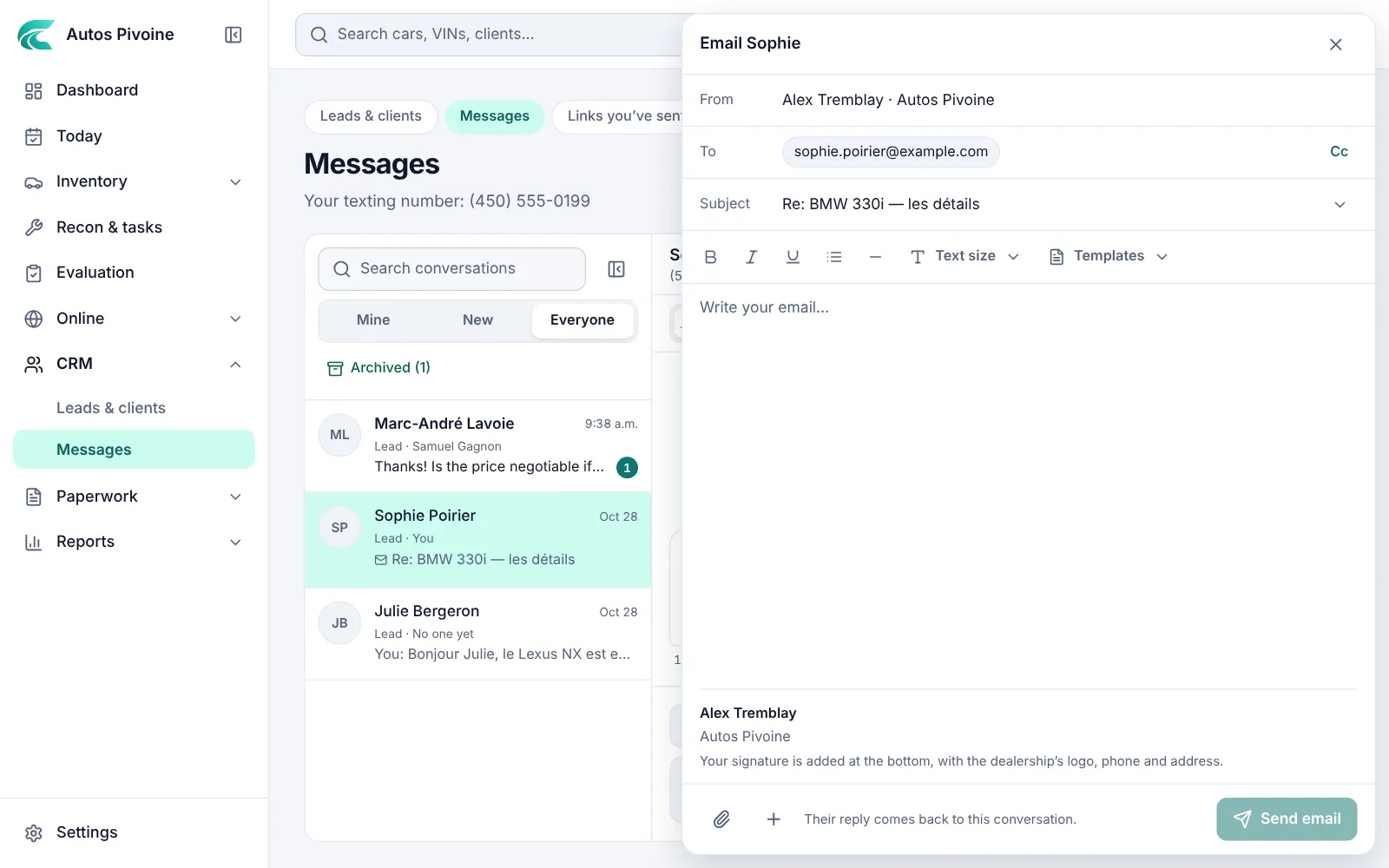
Write and read emails next to the texts, with attachments and your signature. The client’s reply comes back into Carvolio.
Why it helps
One place for everything said to a client, whoever said it.
How to use it
- Open the conversation and choose Email.
- Write it and attach a file from your computer or from Carvolio.
- Their reply shows in the conversation and in the client’s history.
Included in every plan.
Appointment remindersNew
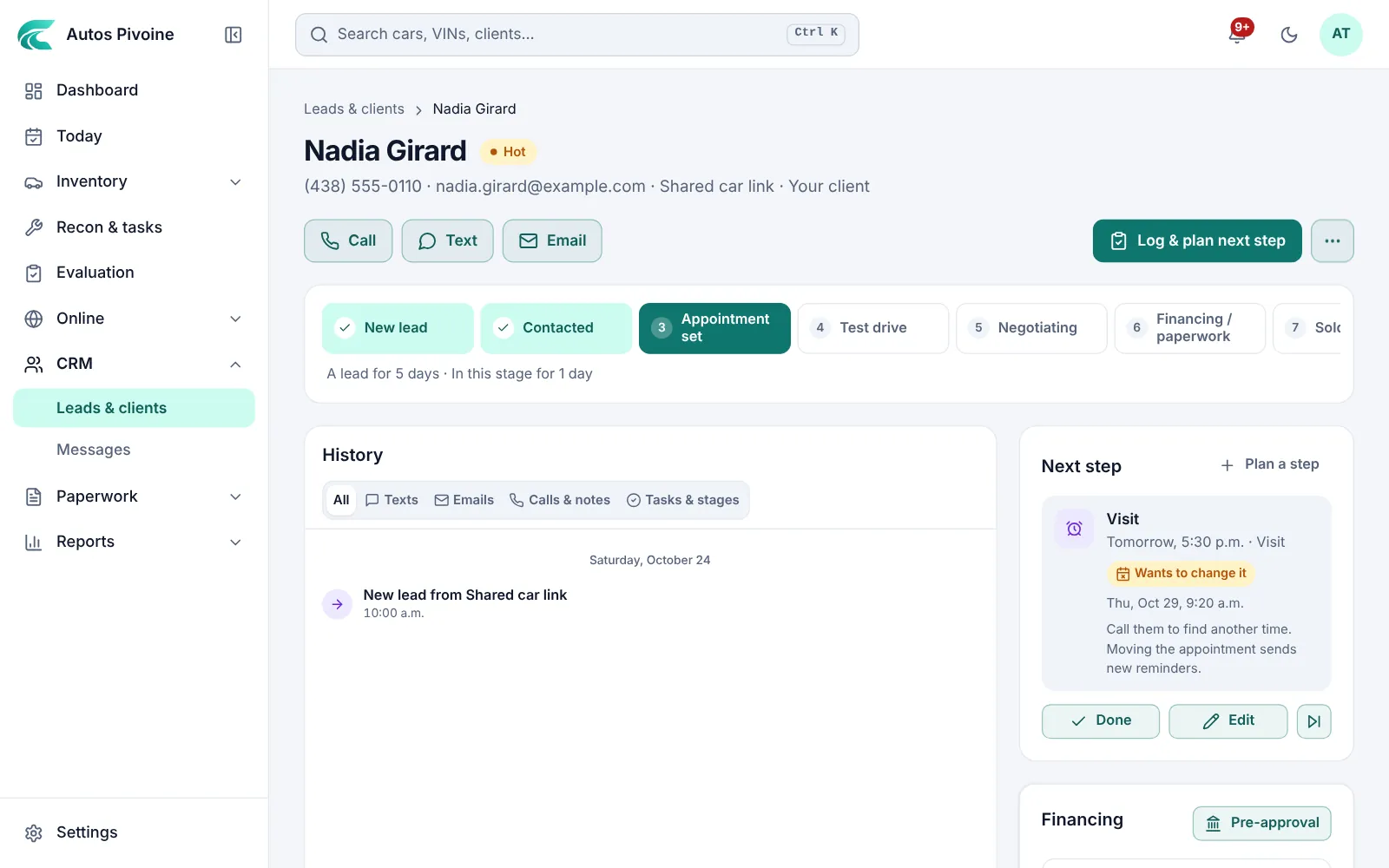
A text the day before and 2 hours before a test drive or visit. They answer 1 to confirm or 2 to change.
Why it helps
Fewer no-shows, and a client who needs another time tells you before you get the car ready.
How to use it
- Turn reminders on in Settings › CRM.
- Plan the visit or test drive on the client’s page and leave Remind the client on.
- Their answer shows on the task and in Today.
Included in every plan.
Click to callNew
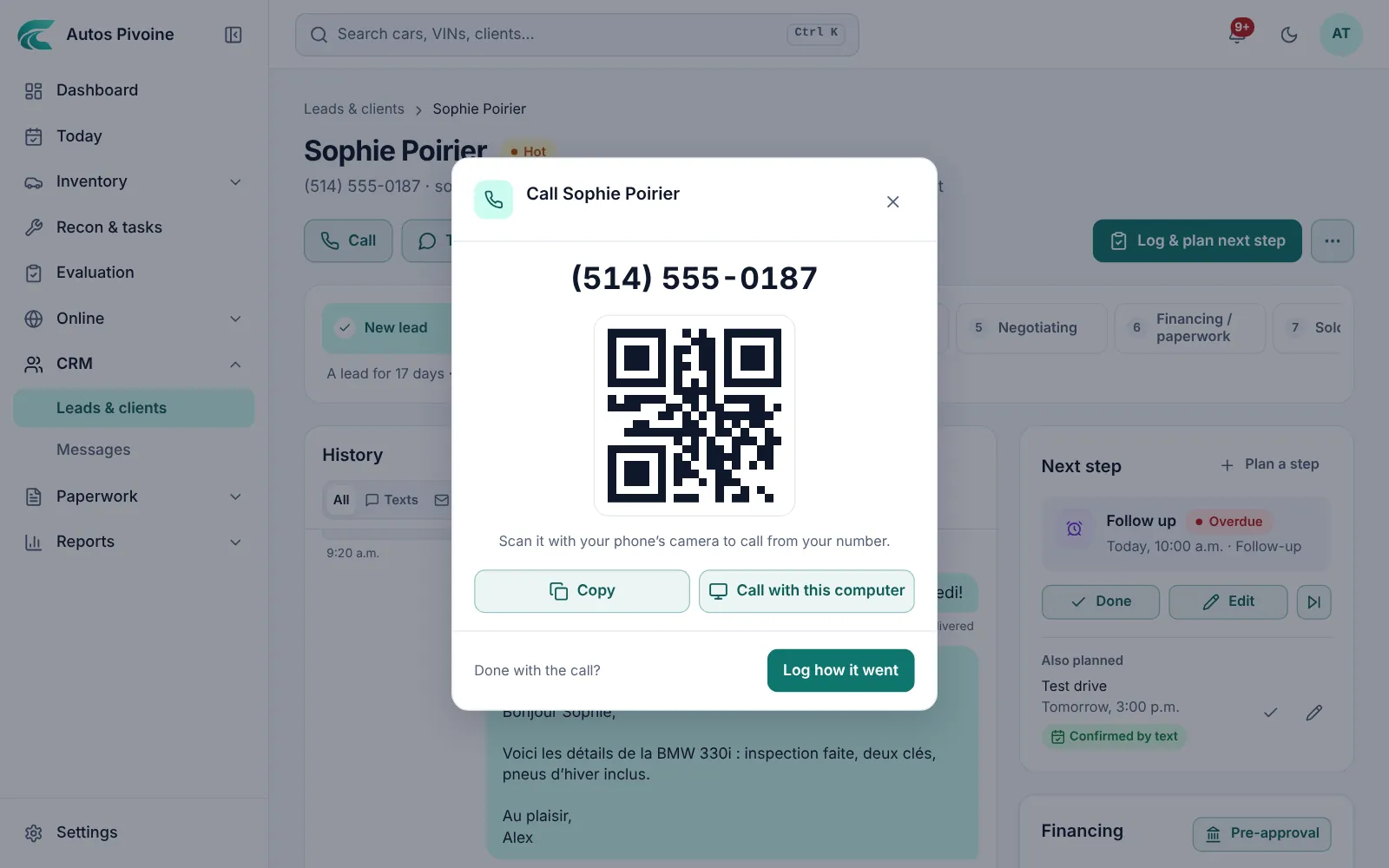
A Call button wherever a client shows up. Your phone dials from your own number; on a computer, scan the QR code and it dials.
Why it helps
When you hang up, Carvolio asks how it went and plans the next step, so every call ends up in the history.
How to use it
- Tap Call on the client, in Messages, Leads & clients or Today.
- Talk to them from your own phone.
- Back in Carvolio, say how it went. No answer? Send the ready text it offers.
Included in every plan.
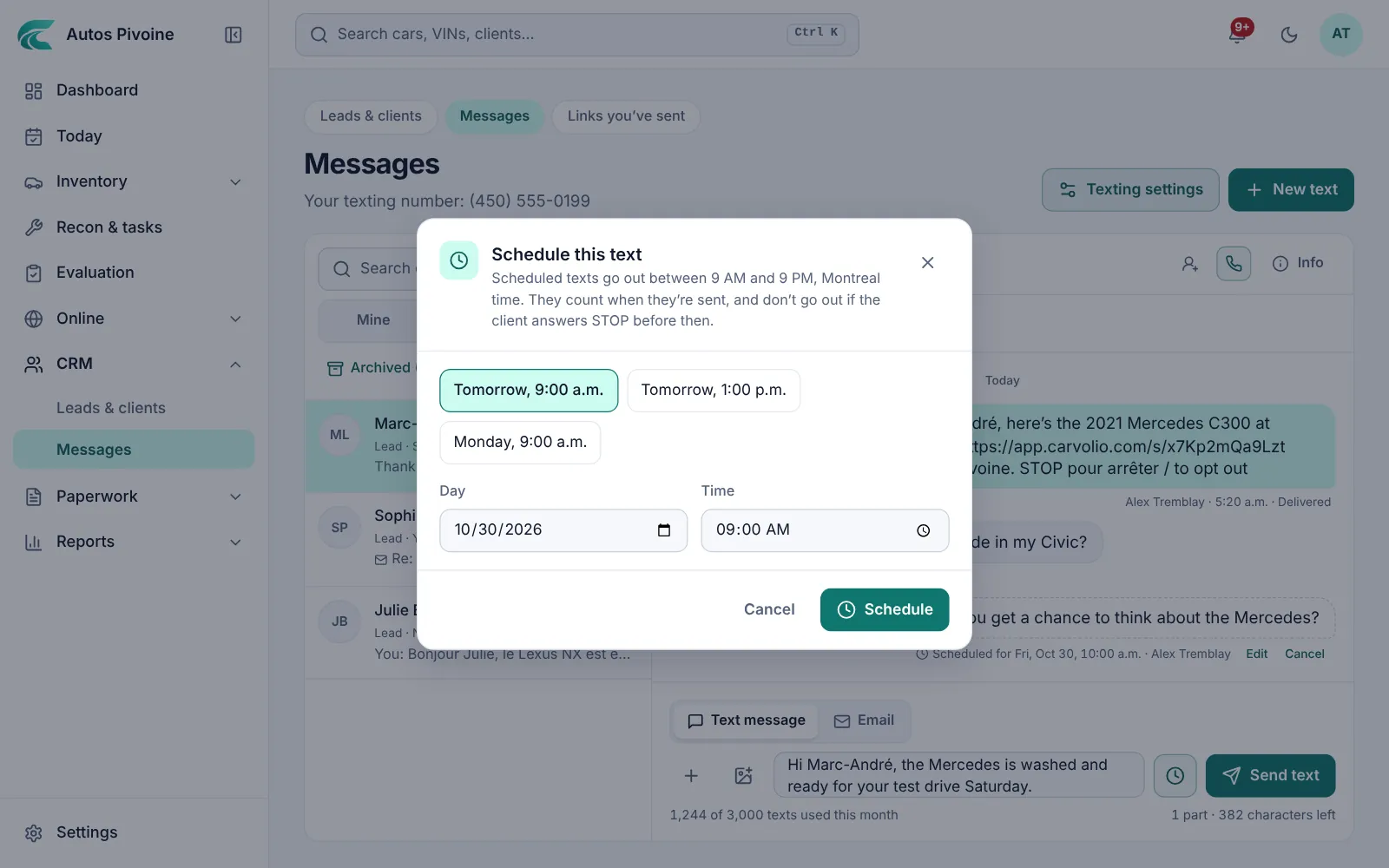
Scheduled textsNew
Write a text now and pick when it goes out. Late at night, Carvolio asks before texting.
How to use it
- Write the text in the conversation.
- Choose the clock and pick the time.
- Change or cancel it until it goes out; it isn’t sent if they answer STOP first.
Included in every plan.
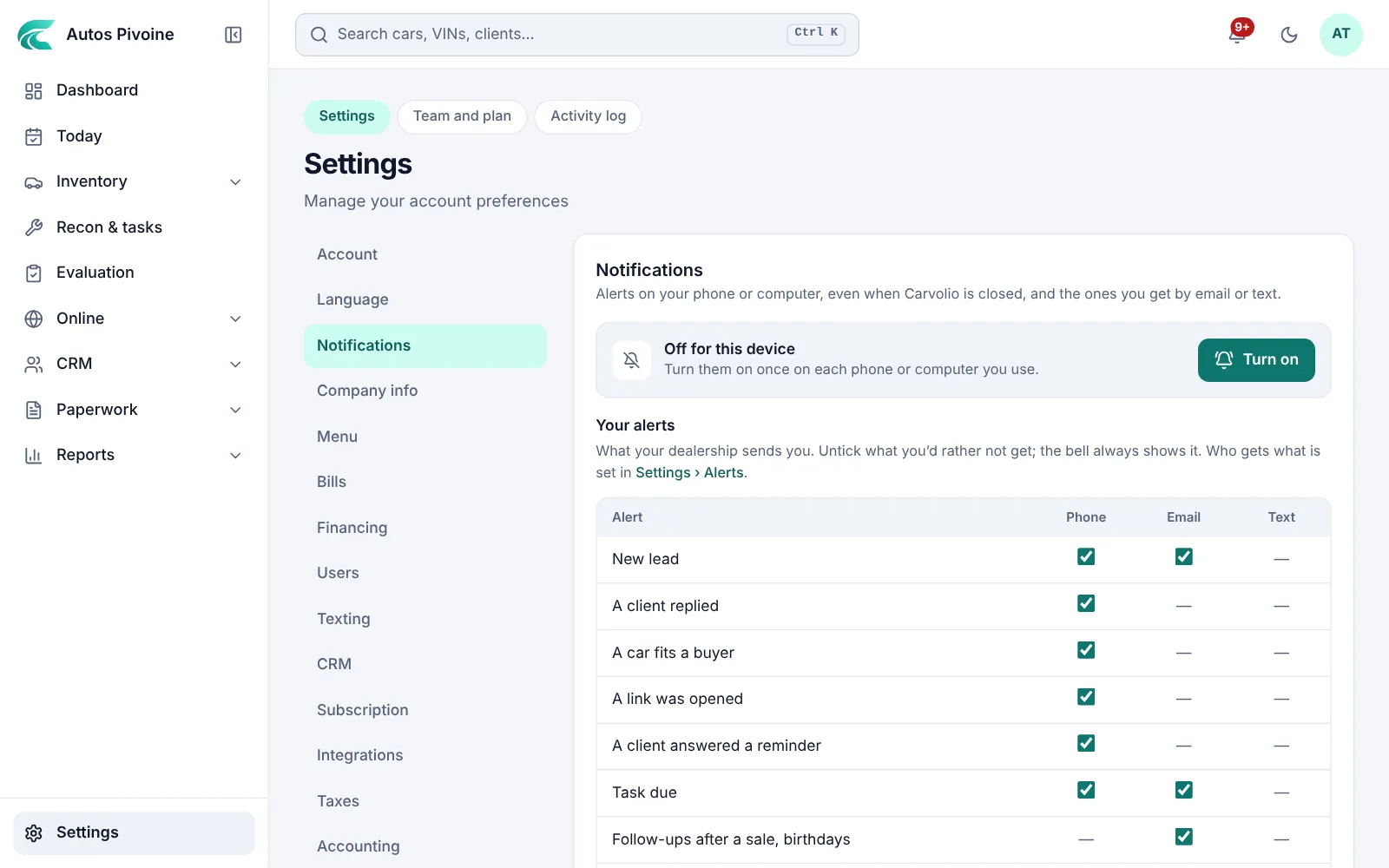
Phone notificationsNew
New leads, replies, tasks due and links opened, on your phone or computer, even when Carvolio is closed.
How to use it
- Open Settings › Notifications.
- Turn them on for this phone or computer. On an iPhone, add Carvolio to the Home Screen first.
- Choose which alerts reach you in Settings › Alerts.
Included in every plan.